Get paid faster without chasing invoices.
How Business Central sends your payment reminders for you, on time, every time.
In short
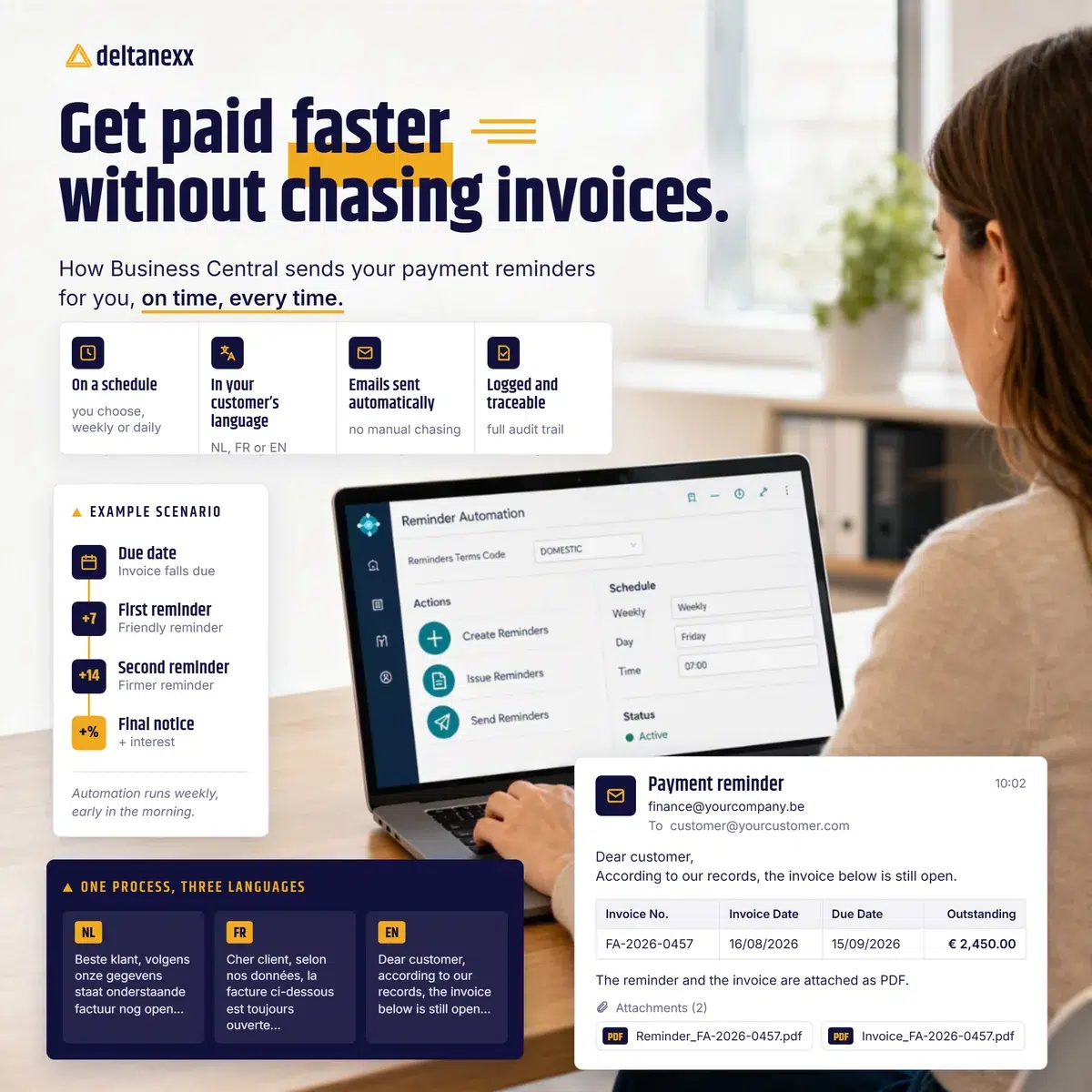
Business Central’s Reminder Automation creates, issues and emails payment reminders for you, on a schedule you choose and in each customer’s language.
- You set the tone, fees and timing once, per group of customers.
- It is standard since Business Central version 24. No extra app.
- Every reminder is logged, so “we never got one” takes seconds to answer.
The Friday afternoon problem
You export the overdue invoices to Excel, check who already paid and write the same polite email for the tenth time. A few customers get forgotten, a few get reminded twice. Next month the same routine starts again.
Why does manual follow-up cost so much?
It takes hours every month, and it is the first task to slip when things get busy: month-end close, holidays, a colleague who is out sick. Every week an invoice stays open is a week your cash sits at your customer.
On top of that, nobody has a clear view of who was reminded when. When a customer calls to say they never got a reminder, you dig through sent emails to find out.
How does Business Central solve it?
You decide the rules once. Business Central creates, issues and emails the reminders on a schedule you choose.
The feature is called Reminder Automation. It builds on the standard reminder features you may already know, so there is nothing extra to install.
Before you start
- Email is set up in Business Central. Reminders go out from a mailbox connected to Business Central, for example finance@yourcompany.be.
- Every customer has a correct email address and language. The language decides which text the customer receives.
- You know your payment policy. When does a first reminder go out? Do you charge fees or interest? Check that it matches your general terms and conditions.
- Every customer has reminder terms. Customers without them are skipped without any warning. Filter the customer list on an empty Reminder Terms Code before you go live.
Set it up in five steps
Create your reminder terms
Reminder terms are your collection scenarios. Most companies need two or three: one for domestic and one for foreign customers, or a softer one for key accounts.
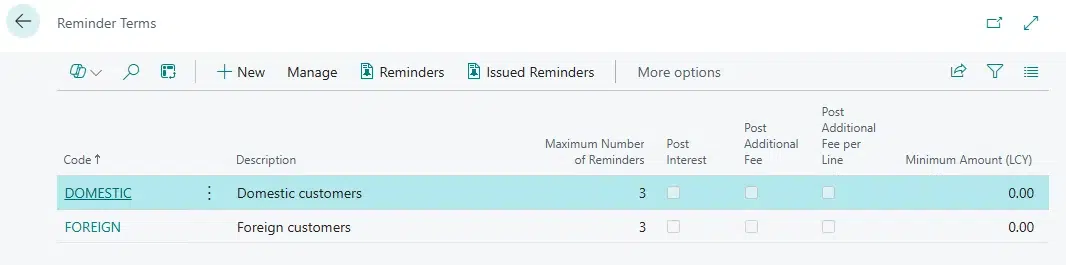
Reminder Terms. One scenario for domestic and one for foreign customers. Define the reminder levels
Each scenario gets its levels: when a reminder goes out, which fee is added and whether interest is calculated. A grace period gives a payment a few days to arrive, so you don’t remind customers who paid yesterday. The due date of each reminder decides when the next level follows.
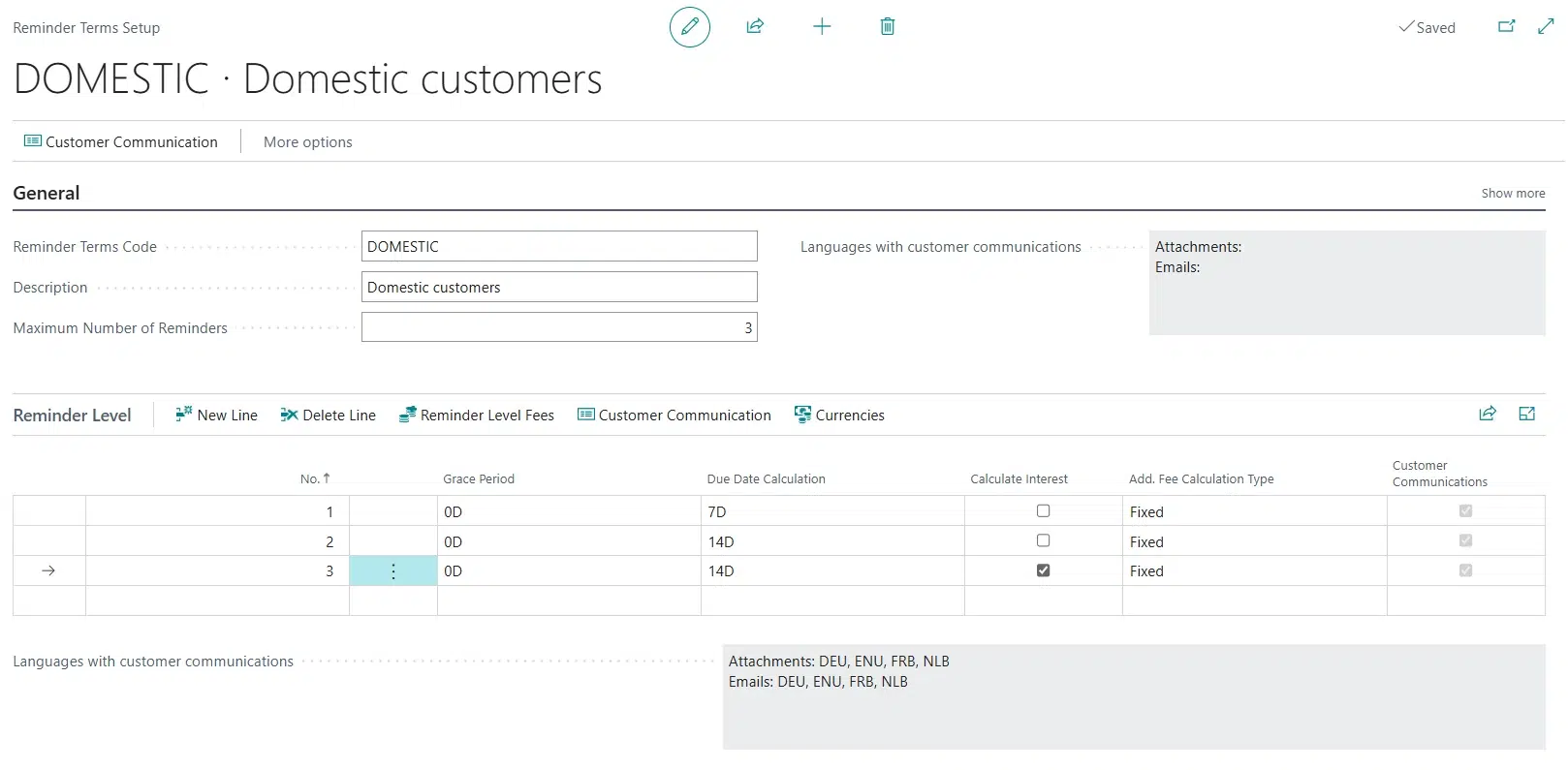
Reminder levels. Three levels, with interest on the final notice and texts in four languages. Write the texts, per level and per language
For each level you write the email text and the text on the PDF reminder. A first reminder sounds friendly, a final notice sounds firm. Add a version for every language your customers speak.
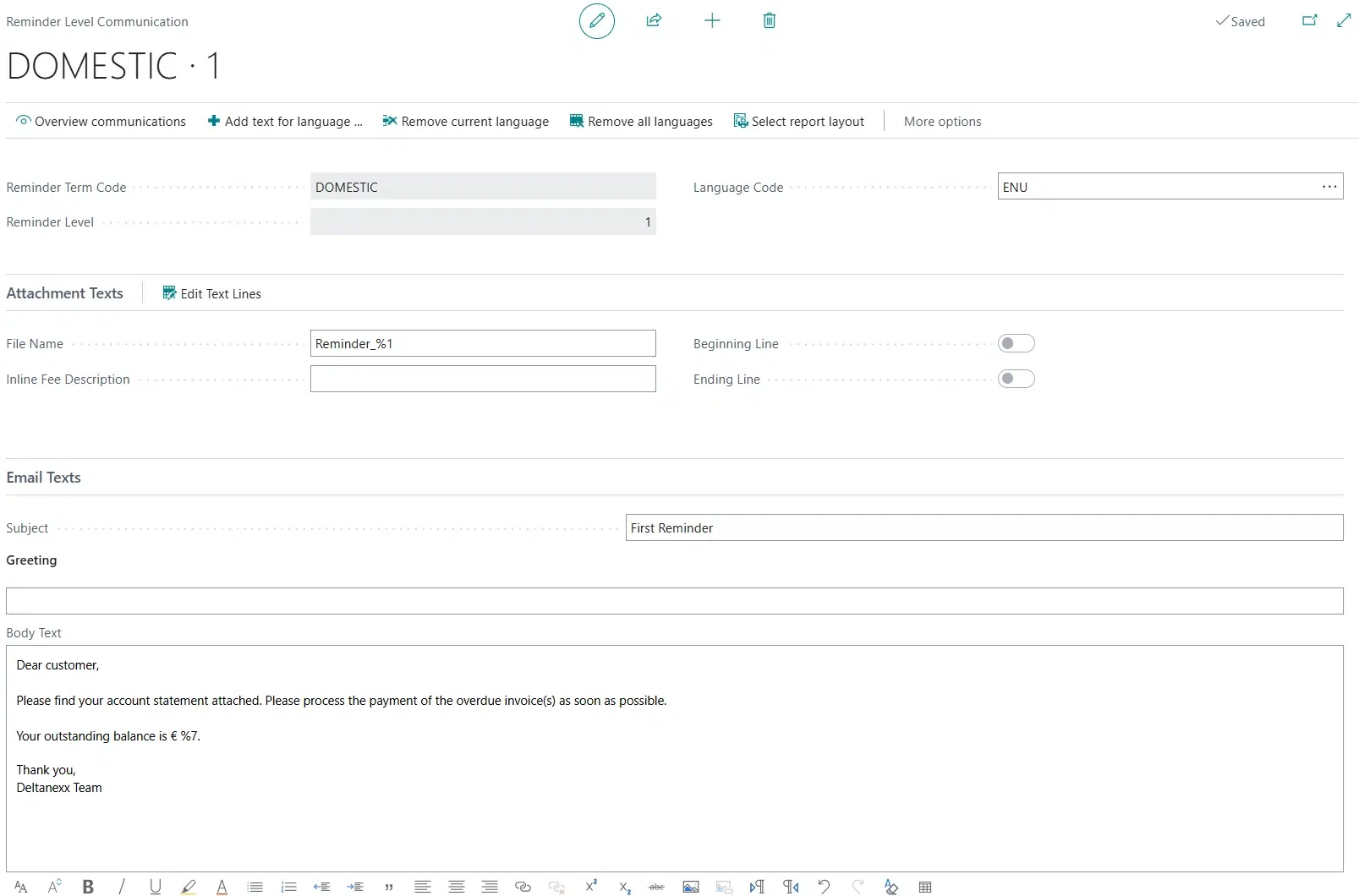
Customer communication. The email text for the first reminder. A code like %7 fills in the amount automatically. Link your customers
On each customer card, pick the reminder terms and check the language code. From then on Business Central knows which scenario and which language to use.
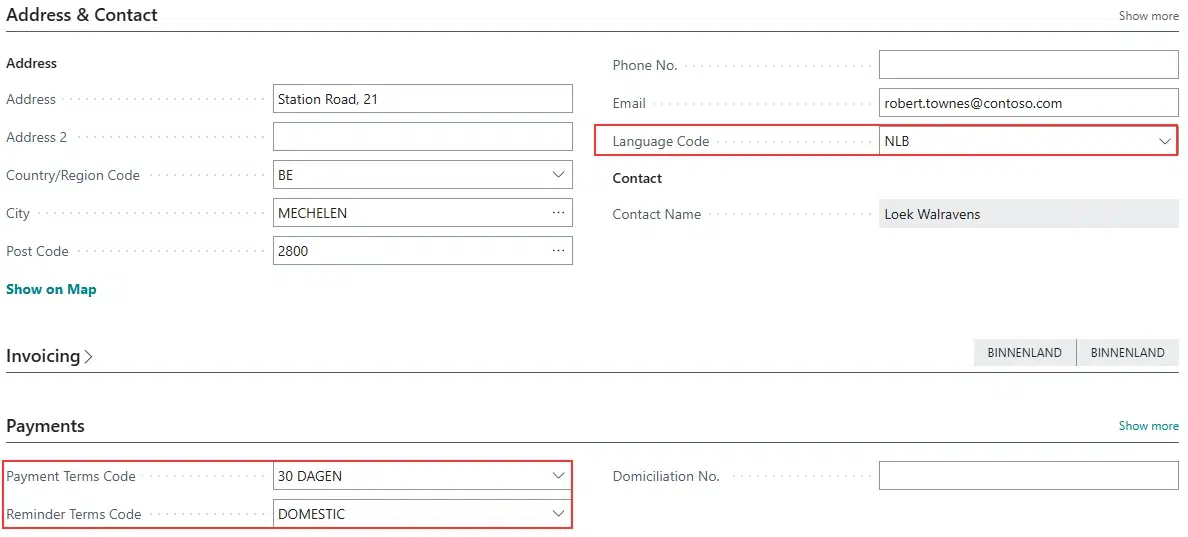
Customer card. The reminder terms and language code decide which scenario and which text the customer gets. Create the automation
On the Reminders Automation page, choose the reminder terms it applies to and add three actions in this order: create, issue and send. Then pick the rhythm: weekly, monthly or a custom schedule. Business Central runs it in the background.
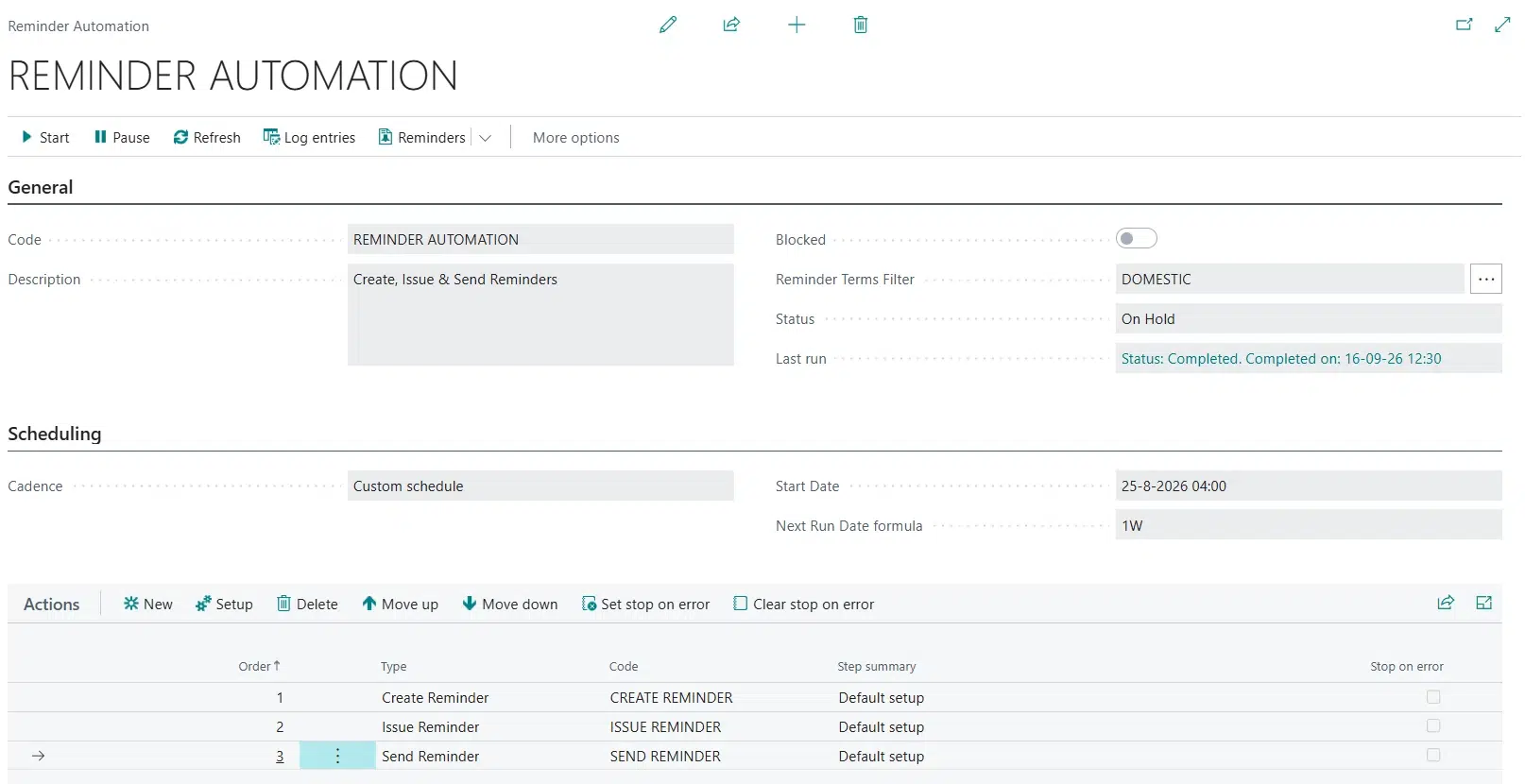
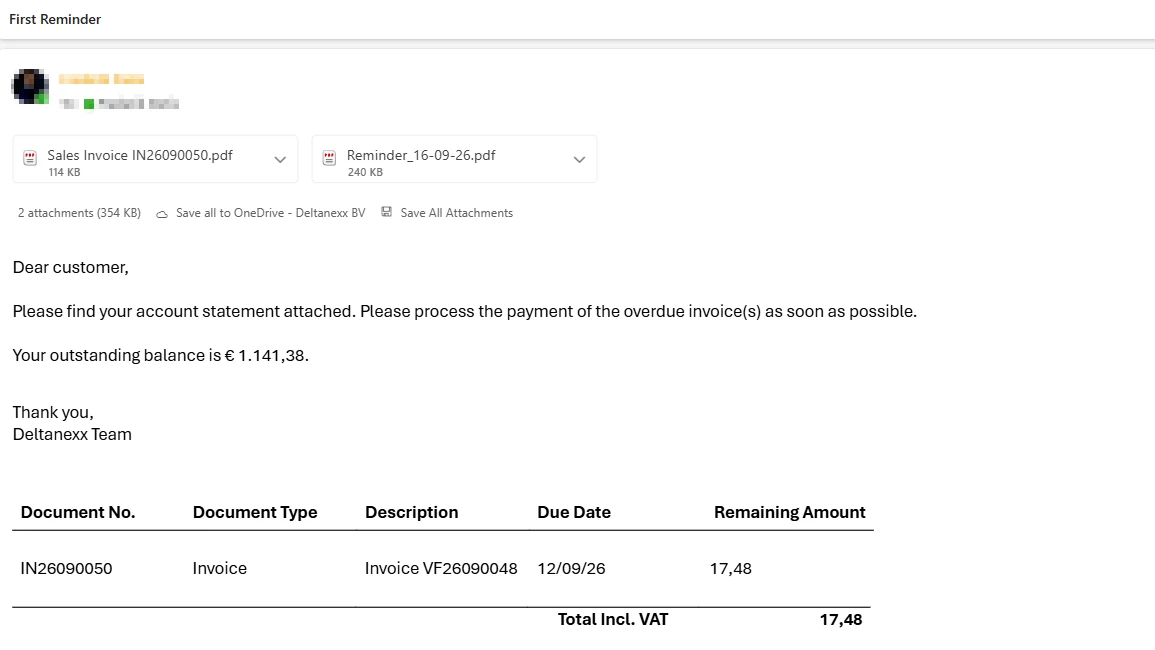
Reminder Automation. One automation for the domestic terms that creates, issues and sends reminders once a week. In the send settings you also choose whether to attach the overdue invoices as PDF. It saves your customer a search, and saves you the “can you send me that invoice again?” email.
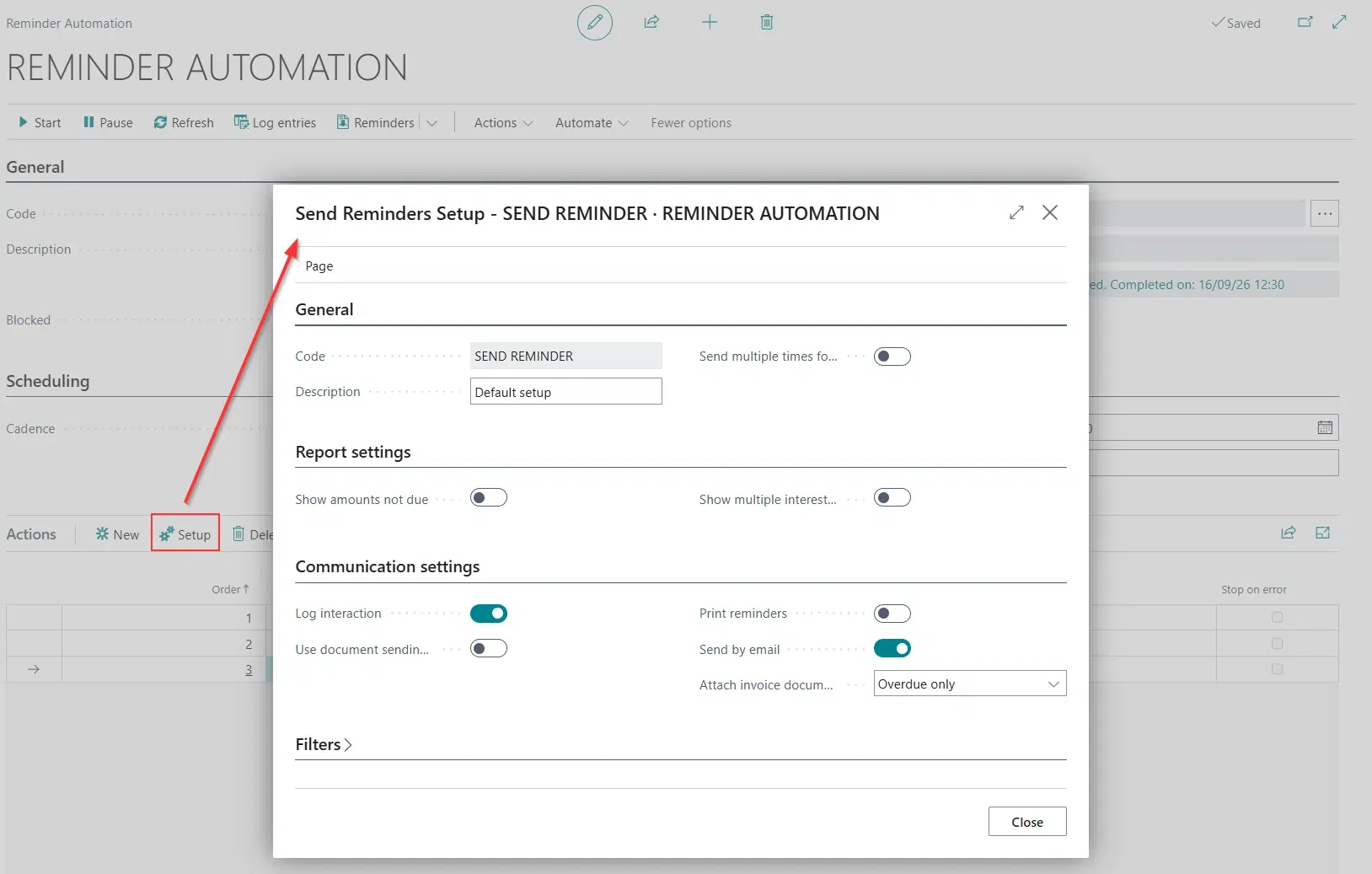
Send settings. Send by email, log an interaction and attach overdue invoices only.
What does it look like in practice?
Take a wholesaler with about 400 invoices a month, of which around 60 are paid late. The finance team used to spend Friday afternoons on reminders. With Reminder Automation, the scenario for domestic customers looks like this.
- Due dateInvoice falls due
- First runFriendly reminder
- +7 daysFirmer reminder
- +14 daysFinal notice+ interest
No customer is forgotten and every reminder is logged. When a customer says they never received anything, you see in seconds what was sent and when.
What would it save in your company?
Put it in your own numbers. Count how many invoices are paid late each month, and how long one manual reminder takes: checking whether it was paid, finding the invoice, writing the email.
- hours a month
- 5
- hours a year
- 60
- working days a year (8 hours)
- 7.5
With the automation that routine work disappears. What remains is a quick look at the log and the customers who really need a personal call. And because every reminder goes out on time, your money comes in sooner too.
One process, three languages
For Belgian companies this makes a real difference. A customer in Ghent gets the Dutch text, a customer in Liège the French one and your customer in Rotterdam or Frankfurt the English version. All from the same automation.
- NL
Beste klant, volgens onze gegevens staat onderstaande factuur nog open…
- FR
Cher client, selon nos données, la facture ci-dessous est toujours ouverte…
- EN
Dear customer, according to our records, the invoice below is still open…
What doesn’t it do?
Reminder Automation sends emails. It doesn’t call customers, it doesn’t read their replies and it doesn’t agree payment plans. A customer who asks for a payment plan, disputes a price or needs a phone call still needs a person.
The automation takes the routine reminders, so your finance team has time for the customers who need a personal approach.
Deltanexx tip
Start with the cadence set to Manual and run it once while you check the result. Are all email addresses right? Are the texts correct in every language? And for a disputed invoice, put that customer ledger entry On Hold so it doesn’t trigger a reminder while you sort it out.
Sources. Microsoft Learn: Automate reminders in collections, Set up reminder terms and levels and the 2024 release wave 1 plan.
Published 5 October 2026. Example fees, days and amounts are illustrative: match them to your own terms.
Key takeaway
Set the rules once. Let Business Central do the chasing.
Start with the cadence on Manual, check one run in every language, then switch on the schedule.
Common questions
Everything you need to know.
Can I check reminders before they go out?
Yes. Let the automation only create the reminders, review them on the Reminders page, then issue and send them yourself. Once you trust the setup, switch on the full flow.
Can I see which reminders were sent?
Yes. The automation keeps log entries for every run, and all issued reminders stay available per customer.
What if something goes wrong during a run?
For each action you can choose to stop the automation on an error, so nothing is sent half-finished. Emails that fail show up in the log entries. The automation runs through the job queue: if the job queue stops, the reminders stop too, and you can be notified when that happens.
Does this work in our version of Business Central?
Reminder Automation has been standard since Business Central 2024 release wave 1 (version 24). Still on Dynamics NAV or an older version? That is one more reason to plan the move, and this article explains the deadline that matters.
Keep reading
All articles-
Business Central 29 is here. Here’s what actually changes
Version 29.0 shipped on 1 October 2026. Eleven changes that matter for a business that buys, stocks and sells goods, and the switches Microsoft has already thrown for you.
Read the article -

Dynamics NAV end of sale: the date that actually matters is not 2031
Microsoft has set the end of sale for Dynamics NAV at 30 April 2031. Five years sounds like comfortable runway. It is not the number to plan against.
Read the article
Want to see this in your Business Central?
Or still looking for the right ERP? We are happy to help, no strings attached.